


BitLife Problems and Solutions: Common Gameplay Issues Explained
BitLife is designed to be a simple life simulation game, but players can sometimes experience gameplay problems. The app may freeze, fail to load, crash, show missing features, or behave differently after an update.
Some issues are caused by the device, while others can come from outdated game files, network problems, storage limitations, or temporary bugs.
This BitLife Problems and Solutions guide covers common gameplay issues and practical steps you can try before contacting support.
Why Does BitLife Have Problems?
Mobile games can experience problems for several reasons.
Common causes include:
- Outdated game versions
- Older Android or iOS software
- Limited device storage
- Temporary app bugs
- Network problems
- Corrupted app data
- Background applications
- Compatibility issues
- Server-side problems
The first step is identifying the type of problem you are experiencing.
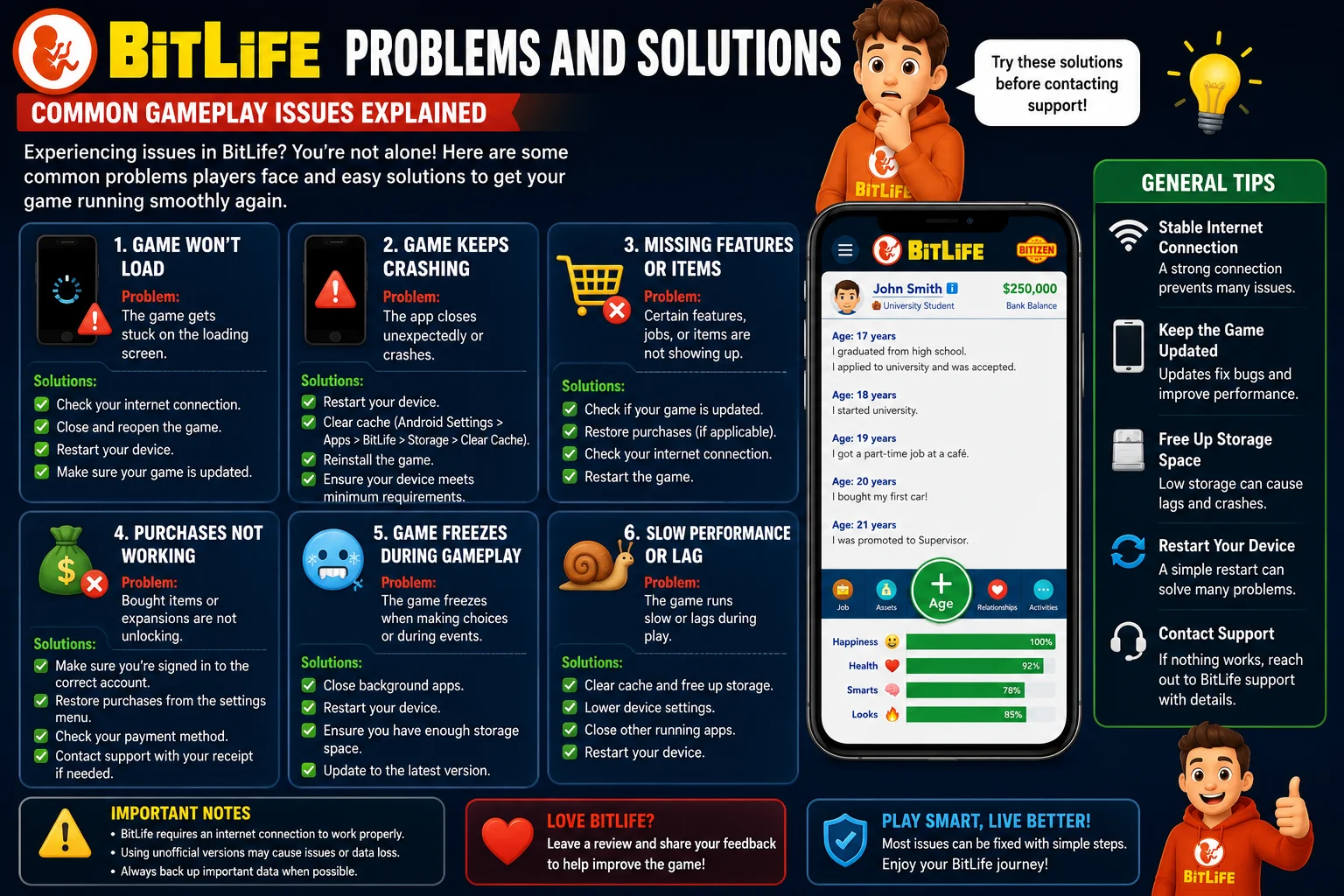
1. BitLife Is Not Opening
One of the most common problems is the game refusing to launch.
If BitLife gets stuck on the loading screen or closes immediately, try these basic solutions.
Restart the App
Close BitLife completely and open it again.
On Android, remove the app from your recent applications and then launch it again.
Restart Your Phone
A simple device restart can sometimes resolve temporary memory or background-process issues.
Update BitLife
Check the official app store for an available update.
Developers may release updates that fix bugs and compatibility problems.
2. BitLife Keeps Crashing
Frequent crashes can be frustrating, especially when they happen during important gameplay.
First, check whether your device has enough free storage.
Low storage can affect application performance.
You should also close unnecessary background applications before starting BitLife.
If the problem continues, update both the game and your device’s operating system.
Android Users
You can also try clearing the app’s cache.
Go to:
Settings → Apps → BitLife → Storage → Clear Cache
The exact menu names can differ between Android phones.
Do not select “Clear Data” unless you understand the consequences, because it may remove locally stored game information.
3. BitLife Is Running Slowly
If menus feel slow or the game takes longer than usual to respond, your device may have limited available memory or storage.
Try these steps:
- Close unnecessary apps.
- Free some storage space.
- Restart your device.
- Update BitLife.
- Update your operating system.
- Try again after restarting.
Older devices may also experience more performance limitations than newer smartphones.
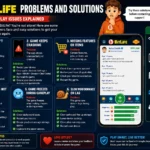
📷 Image Suggestion #1
Placement: After the performance and crashing sections.
Image: Android smartphone showing a fictional BitLife-style loading screen with a warning icon, refresh symbol, and troubleshooting elements.
Alt Text: BitLife gameplay problems and troubleshooting on Android
4. BitLife Is Stuck on the Loading Screen
A loading problem can be caused by temporary app issues, network connectivity, or a problem with the current installation.
Start by closing and reopening the game.
Then check your internet connection if the feature you are using requires online access.
You can also switch between Wi-Fi and mobile data to determine whether the connection is causing the problem.
If other apps work normally but BitLife remains stuck, check for a game update.
5. BitLife Features Are Missing
Sometimes players expect to see a particular feature but cannot find it.
There can be several explanations.
A feature may:
- Require a particular version
- Be part of optional content
- Depend on gameplay progress
- Have changed after an update
- Be unavailable on a specific platform
- Have been temporarily affected by a bug
Before assuming something is broken, check whether your game is fully updated and whether the feature is officially available in your version.
6. BitLife Update Is Not Working
If a new update does not appear, open your device’s official app store and search for BitLife manually.
If an update is available, install it and restart the game.
If the store still shows an older version, the update may not have reached your device yet.
Avoid downloading random APK files simply because they claim to provide the latest version.
Unofficial files can introduce security and compatibility risks.
7. BitLife Save or Progress Problems
Losing progress can be one of the most frustrating experiences for players.
Before troubleshooting save-related issues, avoid repeatedly deleting and reinstalling the app.
Also be careful when clearing app data.
If your progress is important, check whether the game provides an official account, cloud-save, or other supported recovery option.
The exact recovery options can depend on the current version of the game.
8. BitLife Ads Are Not Loading
Some players may experience problems with advertisements.
Possible causes include:
- Internet connection issues
- Temporary ad-service problems
- App bugs
- Network restrictions
- Outdated game versions
Try restarting the app and checking your internet connection.
If the problem continues, updating the game may help.
Do not install unofficial modified versions simply to avoid advertisements. Such files can create additional security risks.
9. BitLife Purchases Are Not Showing
If you purchased official content but cannot access it, first confirm that you are using the same account associated with the purchase.
Check your app store purchase history and make sure the transaction was completed.
You can also restart the game and look for an available restore-purchase option if the game provides one.
If the purchase still does not appear, contact the appropriate official support channel with your transaction information.
10. BitLife Is Not Connecting Properly
Some features may require an internet connection.
If BitLife cannot connect, test your connection by opening another website or app.
You can also:
- Restart your router.
- Switch between Wi-Fi and mobile data.
- Disable a problematic VPN temporarily.
- Restart BitLife.
- Check for game updates.
If other internet services work normally, the issue may be temporary and related to the game’s services.
11. BitLife Has Audio Problems
If you cannot hear game sounds, check the following:
- Device volume
- Media volume
- Silent mode
- Game sound settings
- Bluetooth connections
- Headphone connections
Sometimes audio is being redirected to a Bluetooth device without the player realizing it.
Restarting the game after checking these settings can also help.
12. BitLife Touch Controls Are Not Responding
If buttons or menus do not respond correctly, close the application and reopen it.
You should also check whether your phone is experiencing wider touchscreen problems.
If other applications have the same issue, the problem may be related to the device rather than BitLife.
If only BitLife is affected, updating the game or reinstalling it may help.
Before reinstalling, make sure you understand how your game progress is stored.
13. BitLife Problems After an Update
Sometimes a new update can introduce unexpected bugs.
If your game worked correctly before an update but started having problems afterward, check whether another update is available.
Developers may release follow-up fixes after discovering problems.
Avoid installing older or modified versions from unofficial websites as a workaround.
An unofficial version may introduce additional problems and security risks.
14. Check Your Device Storage
Storage is often overlooked when troubleshooting mobile games.
If your phone is nearly full, applications may behave unpredictably.
Try to keep enough free space for the operating system and applications to work normally.
You can remove:
- Unused applications
- Large videos
- Duplicate photos
- Old downloads
- Unnecessary files
Then restart the device and try BitLife again.
15. Reinstall BitLife as a Last Resort
If normal troubleshooting does not work, reinstalling the game may resolve corrupted installation files.
However, do not uninstall BitLife immediately if you are worried about losing your character or progress.
First check whether your progress is backed up or linked to an official recovery system.
After confirming your data is safe:
- Remove the game.
- Restart your device.
- Install BitLife again from the official app store.
- Open the game.
- Check whether your progress can be restored.
📷 Image Suggestion #2
Placement: Before the final troubleshooting checklist.
Image: Smartphone displaying a fictional BitLife-style error screen with repair tools, update icon, storage indicator, and restart button.
Alt Text: BitLife common errors and solutions for mobile gameplay
Quick BitLife Troubleshooting Checklist
Before looking for advanced solutions, try these basic steps:
- Restart BitLife.
- Restart your phone.
- Check your internet connection.
- Free some storage space.
- Update BitLife.
- Update your operating system.
- Close background applications.
- Clear the app cache on Android.
- Check official purchase information.
- Avoid unofficial APK files.
- Reinstall only after checking your save data.
When Should You Contact Support?
If you have tried the basic solutions and the problem continues, contacting official support may be the best option.
Provide useful information such as:
- Device model
- Operating system version
- BitLife version
- Description of the problem
- When the issue started
- Screenshots or error messages
Clear information can make troubleshooting easier.
Frequently Asked Questions
Why does BitLife keep crashing?
Crashes can be caused by outdated software, limited storage, temporary bugs, or device compatibility issues. Updating the game and restarting your device are good first steps.
Why is BitLife stuck on loading?
Check your internet connection if required, restart the game, and make sure you have the latest version installed.
Will clearing BitLife data delete my progress?
It can remove locally stored application data. Always check your available save or recovery options before clearing app data.
Why are some BitLife features missing?
Features can depend on your game version, platform, optional content, availability, or current gameplay requirements.
Should I download a Mod APK to fix BitLife problems?
No. A modified APK is not a reliable troubleshooting method and may create security, privacy, or compatibility problems.
What should I do if BitLife crashes after an update?
Check for another available update, restart your device, and review official support information. The problem may be a temporary bug introduced by the update.
Final Thoughts
Most BitLife problems can be approached with a few simple troubleshooting steps. Start by restarting the game, checking your device, updating the software, and making sure enough storage is available.
If the problem involves purchases or lost progress, be more careful before deleting app data or reinstalling the game.
Finally, avoid unofficial APKs as a quick fix. Using the official version and keeping your game updated can reduce many common compatibility and security problems.